Turn on monitoring
Check that RDST can see your database's query statistics, pick how deep analysis reads a query, and watch the first readings arrive.
Turn it on
Open the Database page. Pick the database in the selector at the top of the sidebar, then click Database. If you haven't added one yet, see Connect a database. After you add a database, either from Targets or during your first launch, the Turn on monitoring dialog opens next.
Click Turn on monitoring. It's on the Database page, and in the monitoring menu under the database's name. RDST connects and runs its prerequisite checks. Each one shows Passed or the fix for your provider, with the SQL to copy. Fix a step and RDST checks again on its own.
Choose how deep analysis reads a query. See EXPLAIN ANALYZE or EXPLAIN only below.
Click Turn on monitoring in the dialog. The first reading starts right away.
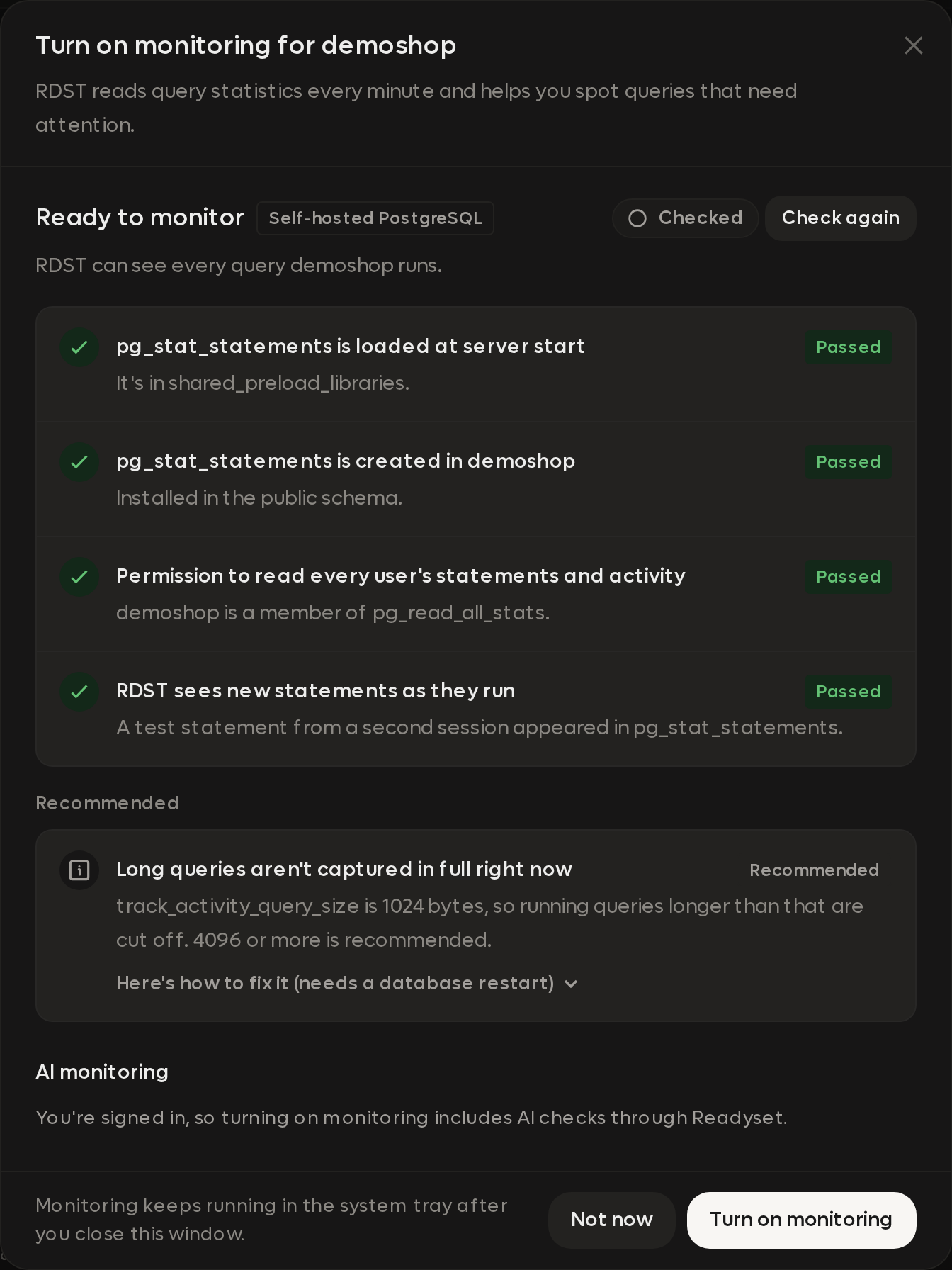
If the database can't be reached, the dialog opens its connection details so you can fix the host, port or password and test it right there.
If a required check fails, the button reads Turn on anyway. Monitoring turns on, and RDST starts reading queries once the required checks pass.
A recommended check that isn't met says what's wrong and Here's how to fix it, with the SQL and whether it needs a database restart. Monitoring works without it.
When you're signed in, the dialog explains that turning on monitoring includes AI checks through Readyset.
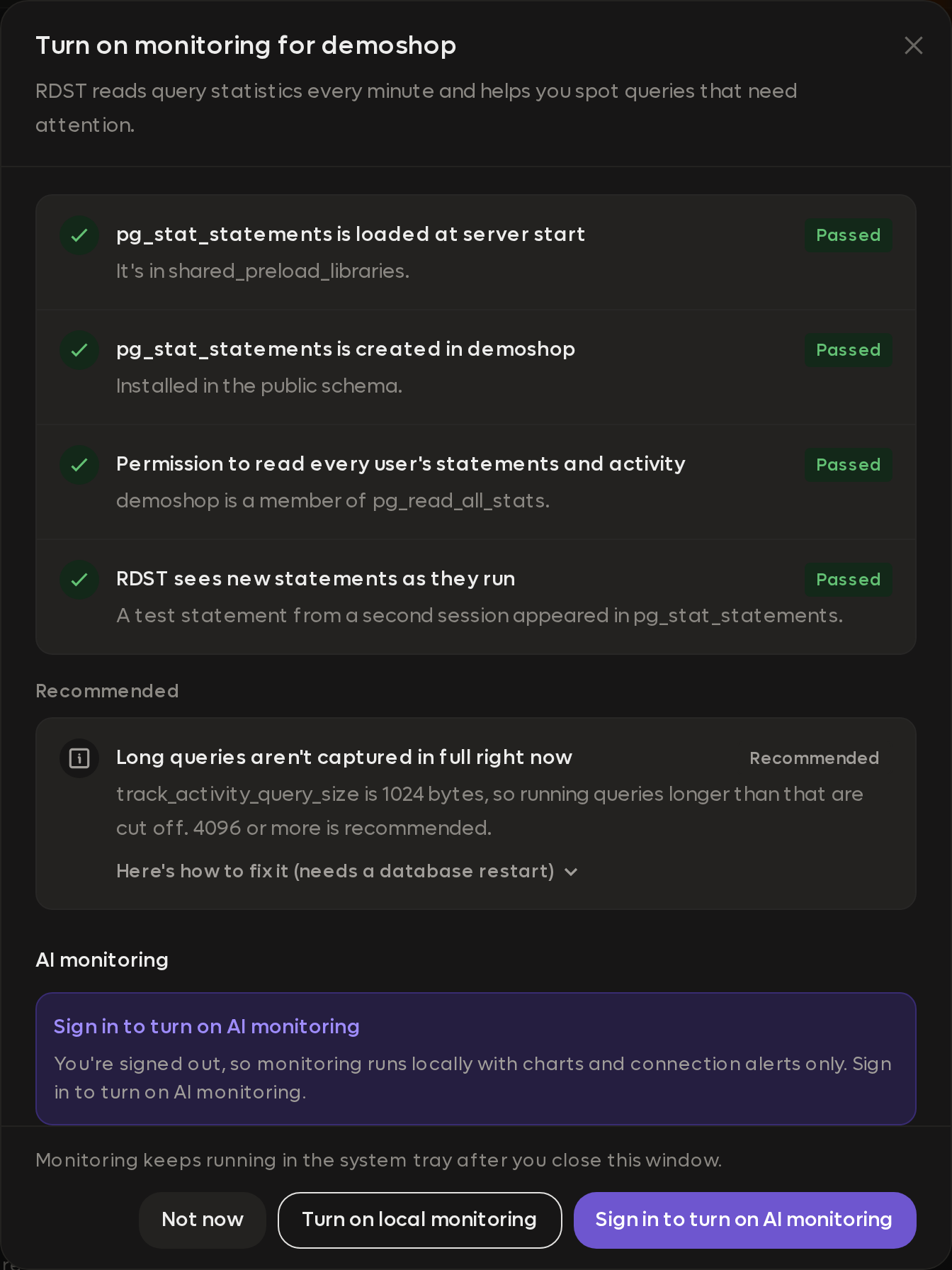
When AI isn't available, the monitoring switch area says You won't get automatic AI recommendations for this database. It offers Sign in when you're signed out, or Manage databases when your account's database slots are all in use.
When you're signed out, the dialog's main action is Sign in to turn on AI monitoring. It explains that local monitoring keeps charts and connection alerts running. Turn on local monitoring lets you continue without signing in. See AI access.
Prerequisites
RDST reads the statistics your database already keeps. It needs those statistics switched on, and permission to read them for every user, not just its own sessions.
| Check | What it means |
|---|---|
| pg_stat_statements is loaded at server start | It's in shared_preload_libraries. Changing this needs a restart |
| pg_stat_statements is created in your database | CREATE EXTENSION IF NOT EXISTS pg_stat_statements; |
| Permission to read every user's statements and activity | The user is a member of pg_read_all_stats, or a superuser |
| RDST sees new statements as they run | RDST runs a tagged test statement on a second session and confirms the statistics picked it up |
| Long queries are captured in full (recommended) | track_activity_query_size is 4096 or more, so long SQL isn't cut off |
To grant the permission:
GRANT pg_read_all_stats TO rdst_readonly;| Check | What it means |
|---|---|
| performance_schema is on | performance_schema = ON. Changing this needs a restart |
| Permission to read performance_schema | SELECT on performance_schema.* |
| Statement statistics are being collected | The global_instrumentation and statements_digest consumers are on |
| RDST sees new statements as they run | RDST runs a tagged test statement on a second session and confirms the statistics picked it up |
| Recent statements are kept for analysis (recommended) | The statement history consumers are on, so deep analysis can use real parameter values |
| Long queries are captured in full (recommended) | performance_schema_max_digest_length is 4096 or more |
To grant the permission and turn the consumers on:
GRANT SELECT ON performance_schema.* TO 'rdst_readonly'@'%';

UPDATE performance_schema.setup_consumers SET ENABLED = 'YES'
  WHERE NAME IN ('global_instrumentation', 'statements_digest');
The UPDATE resets when MySQL restarts. On RDS and Aurora, set the matching
performance_schema_consumer_* parameters in your DB parameter group to keep
it.
For the full set of grants, including a read-only account to start from, see Database permissions.
EXPLAIN ANALYZE or EXPLAIN only
When RDST deep-analyzes a query, it asks the database for the query's plan. The dialog asks how:
| Option | What happens |
|---|---|
| Run EXPLAIN ANALYZE on problem queries (recommended) | RDST runs the read-only query with a time limit and records real timings. It adds a little load to the database |
| EXPLAIN only | RDST gets the plan without running the query. The statement isn't executed. Other diagnostic reads still run, and there are no measured query timings |
This applies to automatic analyses and the ones you start. You can change it later with Measure real timings in the monitoring settings.
RDST only runs SELECT statements. It never runs an INSERT, UPDATE,
DELETE or schema change, whichever option you pick. Every execution has a timeout, shown in
Agent activity.
Include deep analysis is on by default in the turn-on dialog. Turn it off and the EXPLAIN ANALYZE and EXPLAIN only options are disabled, and no automatic analyses run. Choosing EXPLAIN ANALYZE shows a short warning that confirms it runs on problem queries. You can change Deep analysis later in the monitoring settings.
The first few minutes
On a database's first run, the Database page shows This is your first run on this database, with what happens over the next few minutes:

| Step | What happens |
|---|---|
| Found your queries | The first reading lands right away. RDST reads every 10 seconds for the first 5 minutes, then once a minute, and the query list fills in |
| First deep analyses | All of the top N queries get their first deep analysis right away. N defaults to 10. Your first Actions follow once the 10 busiest reads are analyzed, usually within about 10 minutes. See deep analysis |
| Nightly report | Written at the report time set for this database, midnight by default |
Rows show Classifying until their quick AI read of the SQL and schema arrives, then a classification such as Missing index. Rows waiting for a deep analysis show their place, like Queued, 1st. Hide closes the panel.
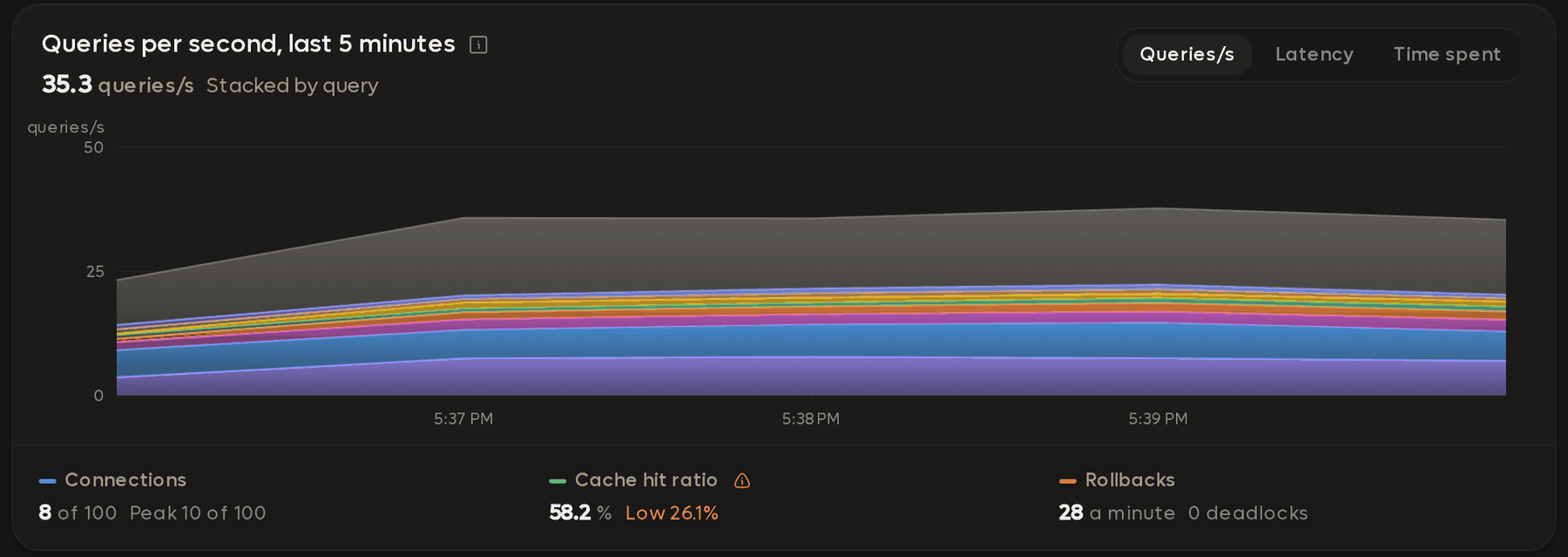
The panel only appears on a database's true first run. If you turn monitoring off and on again, RDST picks up from the history it has, with no first-run panel.
RDST needs about a day of readings before it alerts on changes, so it knows what normal looks like for each query. A lost connection or a stuck query alerts from the start.
Waiting for queries
If nothing has run on the database yet, the page says Waiting for queries. RDST shows what it sees, never simulated traffic, so send it some real work:
- Start your app with this database as its connection, and click through the pages that matter.
- Or run your test suite or a load script against it.
- Keep RDST running. The list updates as readings arrive; the window can be closed.
RDST Agent
RDST Agent watches your PostgreSQL and MySQL databases around the clock, tells you when a query starts taking more of the database's time, and explains what to do about it.
Actions
The short list of changes worth making on each monitored database, ranked by how much database time they'd save, with the SQL to run and a check that the fix worked.