The Database page
See how busy your database is right now and which queries take up most of its time. Each query shows whether it's healthy and the score from its last deep analysis.
The Database page shows one database: its live chart and query list, covered here, and its nightly reports. The changes worth making on it are in Actions.
The header under the database's name shows its monitoring state and how much history RDST has. The green monitoring dot pulses while RDST collects readings, with reduced motion when your computer requests it. The monitoring state opens the monitoring menu, where you can turn monitoring off or open the monitoring settings.
Switching databases keeps you on the same page for the new database. From Inbox or another page that isn't tied to one database, switching opens that database's Database page.
The chart
The chart stacks each query's share of the work, one colored band per query, so the biggest bands are where your database spends its time. Switch what it plots:
| Metric | What it shows |
|---|---|
| Queries/s | Calls per second |
| Latency | Time per call |
| Time spent | Each query's recorded execution time |
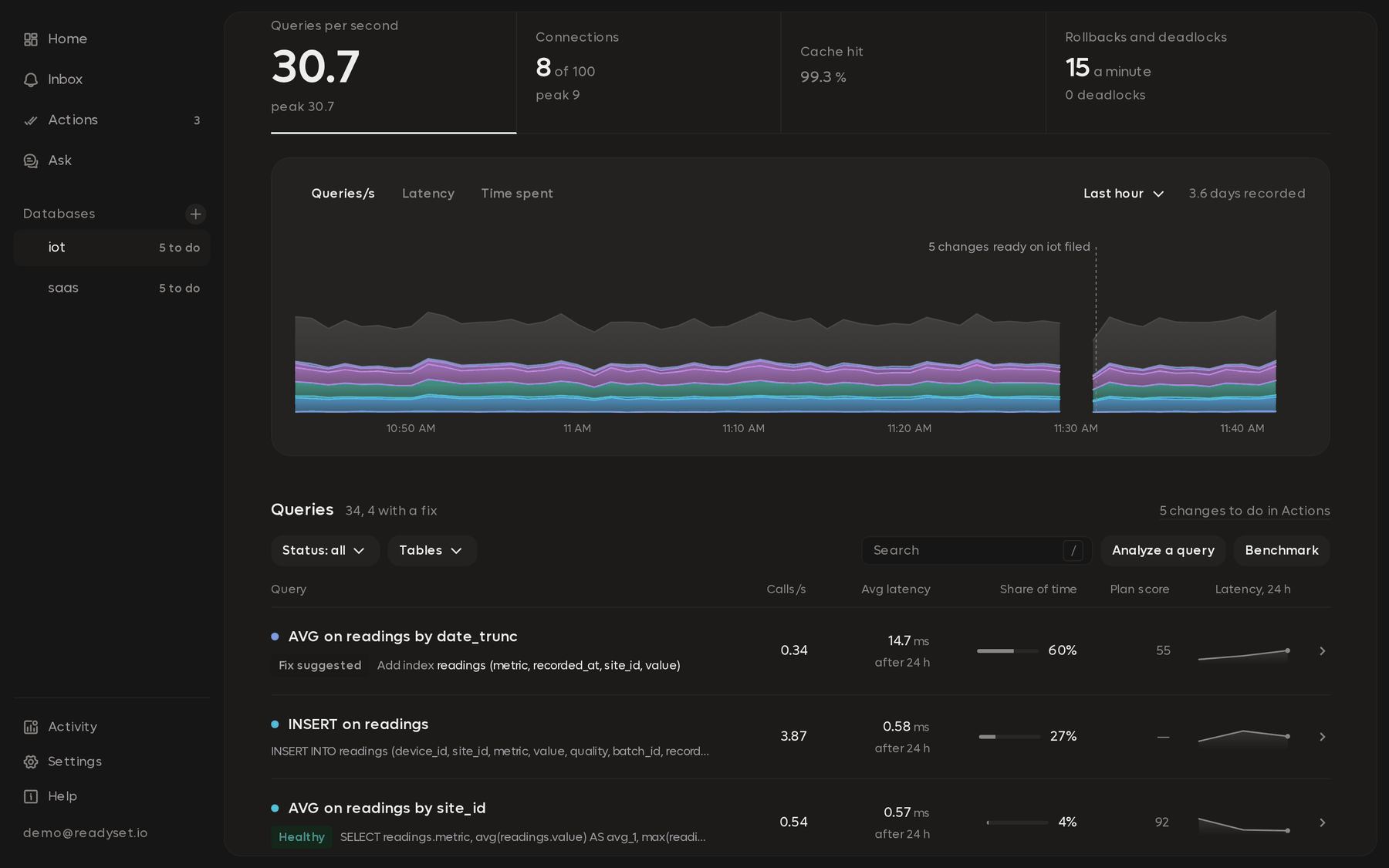
- Hover a band to find its query in the list below. Click it to open that query.
- Drag across the chart to zoom into a stretch of time. Reset zoom goes back.
- When a query is open, the chart draws that query's own line with its name, so you can always tell which one you're looking at.
A hatched band marks a gap in readings. Monitoring paused: RDST couldn't reach the database links to the Inbox item for that outage. No readings marks a gap with no known cause. For example, RDST or the computer may have been off.
Health metrics
Under the chart, three tiles show the database as a whole. Click one to plot it.
| Tile | What it tells you |
|---|---|
| Connections | Open connections against the server's maximum, and the peak |
| Cache hit ratio | The share of reads served from memory instead of disk. A drop means more reads go to disk, which is slower |
| Rollbacks | Transactions your app started and then cancelled, per minute, plus deadlocks |
Time frames
Pick a preset above the query list: 5m, 15m, 1h, 24h, 7d, 30d, 90d or All. Custom takes any start and end date and time, from 5 minutes up to all the history RDST has stored.
The chart, the list and every number on the page follow the time frame you pick.
The query list
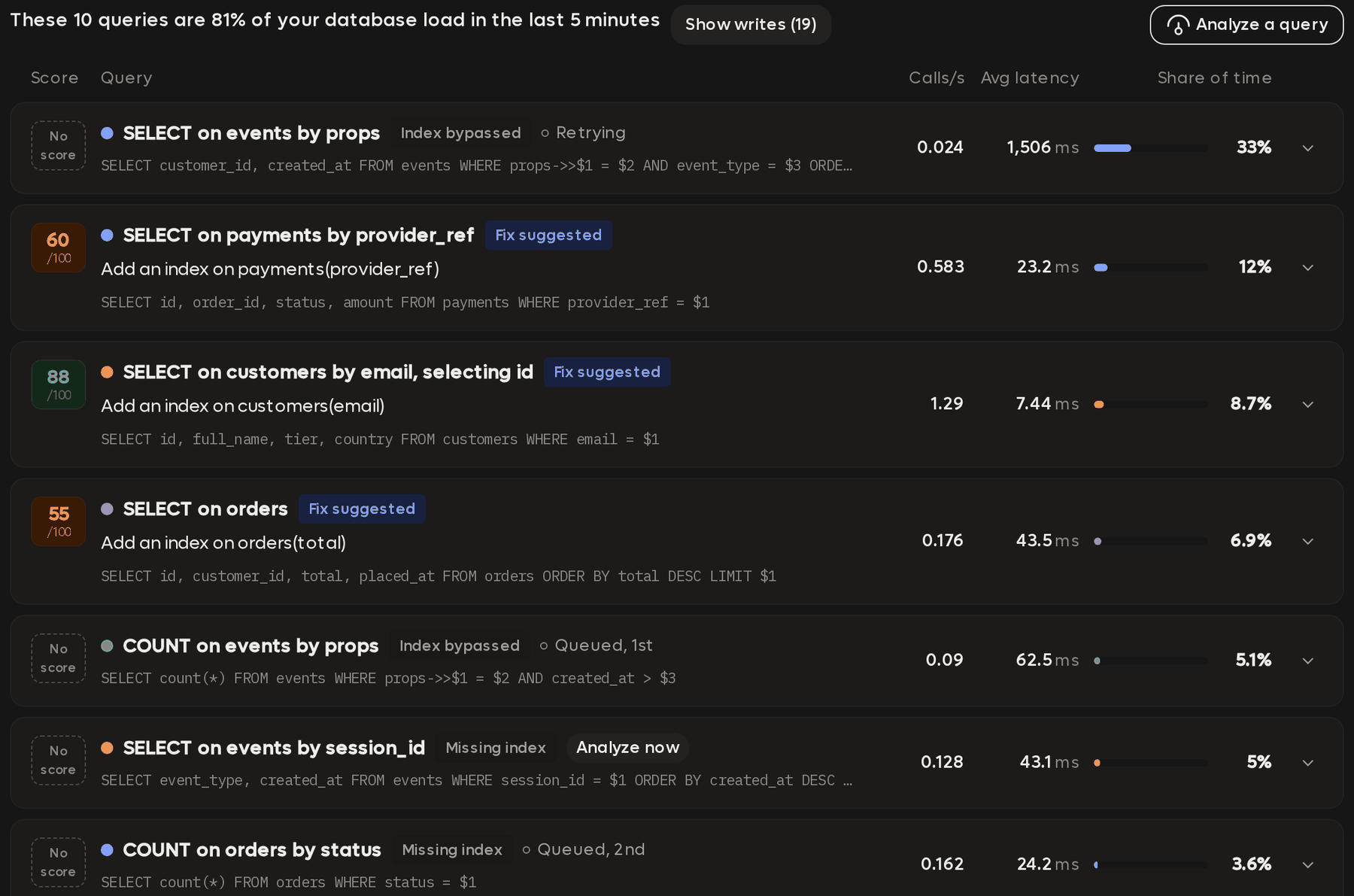
The list ranks queries by their load in the time frame. Its heading says how much of the total they cover, for example "These 10 queries are 97% of your database load in the last 5 minutes".
RDST tracks at most 10,000 queries per database. Heavier new queries replace the lightest tracked queries. Traffic beyond that limit still counts in the database totals and the chart's Other band. The top 1,000 queries get full detail; the remaining tracked queries keep coarser history. See Data and retention.
Each row shows:
| Column | What it shows |
|---|---|
| Score | The deep analysis score out of 100. Lower is worse. While work is queued or running, it shows Queued with its place, Analyzing with the current step (sampling values, running EXPLAIN or asking the AI), or Retrying. Otherwise, it shows No score until the query is analyzed |
| Query | A name RDST gives it from what it does, like COUNT on users and orders, its status, and its SQL. Names are unique within a database; when two queries would share one, the later one gets a number, like COUNT on events by props (3) |
| Calls/s | Calls per second in the time frame |
| Avg latency | Mean time per call |
| Share of time | Its share of the database's recorded execution time |
Expand a row for the query's own charts, its deep analysis, its SQL and classification, and its actions: Analyze now (or View analysis progress while one is under way), Benchmark, which opens a benchmark with this query already picked, and Send to Ask.
Analyze a query above the list takes SQL you paste, runs a deep analysis on it, and adds it to the list.
Statuses
Every query gets one status, the first of these that applies, with a one-line reason like "Traffic up 3.5x since yesterday 9:39 PM":
| Status | Meaning |
|---|---|
| Needs attention | It has an open Act now item in the Inbox |
| Watch | It has an open Watch item |
| Fix suggested | Deep analysis found an index, a rewrite or a setting that would help |
| Healthy | Analyzed, with nothing to fix |
| Not analyzed yet | It hasn't had a deep analysis. The score column shows Queued with its place, Analyzing with the current step, or Retrying while work is under way |
| Not analyzed | RDST won't analyze it. Hover for the reason, for example "UPDATE changes data, so RDST doesn't run it" |
Needs attention and Watch come straight from the Inbox, so the list and the Inbox always agree.
Sort and filter
Sort orders the list by:
| Sort | Orders by |
|---|---|
| Impact (default) | Database time in the time frame |
| Biggest change | The largest significant latency change |
| Most frequent | Calls per second |
| Slowest | Mean latency per call |
| Score, lowest first / Score, highest first | The deep analysis score. Queries without one go last |
Filters narrow it down:
- Status: any status above, or a classification such as Missing index, Broad scan, Join growth, Repeated work or Index bypassed.
- Table: only queries that touch one table.
- Search: matches query text and table names. Press
/to jump to it.
Clear filters resets them.
Writes
INSERT, UPDATE and DELETE statements are hidden from the list by default.
Show writes (N) brings them back. They always count toward the chart and the
totals, and a heavy write can still raise an Inbox item. RDST never runs or
deep-analyzes them.
An Inbox item's link opens this page already set to that item's time frame and filtered to the queries it's about. A banner at the top says which item you came from, and Show the last 24 hours steps back out.
Benchmarks
A benchmark runs one or more read queries over and over and measures latency and throughput. The Benchmarks section at the bottom of the Database page lists past runs. To start one:
- Select Benchmark in the Benchmarks section, or on an expanded query, which picks that query for you.
- Under Pick queries, select the queries to measure. The list has this database's monitored and saved queries, with a search box. Writes and schema changes can't be picked. Queries with parameters take values, filled in with values RDST observed where it can.
- Choose How long:
- Quick: 30 seconds on one connection, with a short pause between runs. Light load.
- Standard: 2 minutes on two connections, back to back, to see how much throughput the query can reach. Higher load.
- Choose Where to run:
- Source only measures your database.
- Source plus Readyset also runs the same queries at the same pace through Readyset. RDST starts Readyset in a temporary container on this computer first, which needs Docker and can add a few minutes. If Readyset can't start, the benchmark still measures your database.
- Readyset only measures a Readyset deployment you've already set up for
this database: a target named after it with
-cacheon the end, likedemoshop-cache, which rdst cache deploy adds. Queries Readyset hasn't cached still reach your database through it.
- Select Start benchmark.
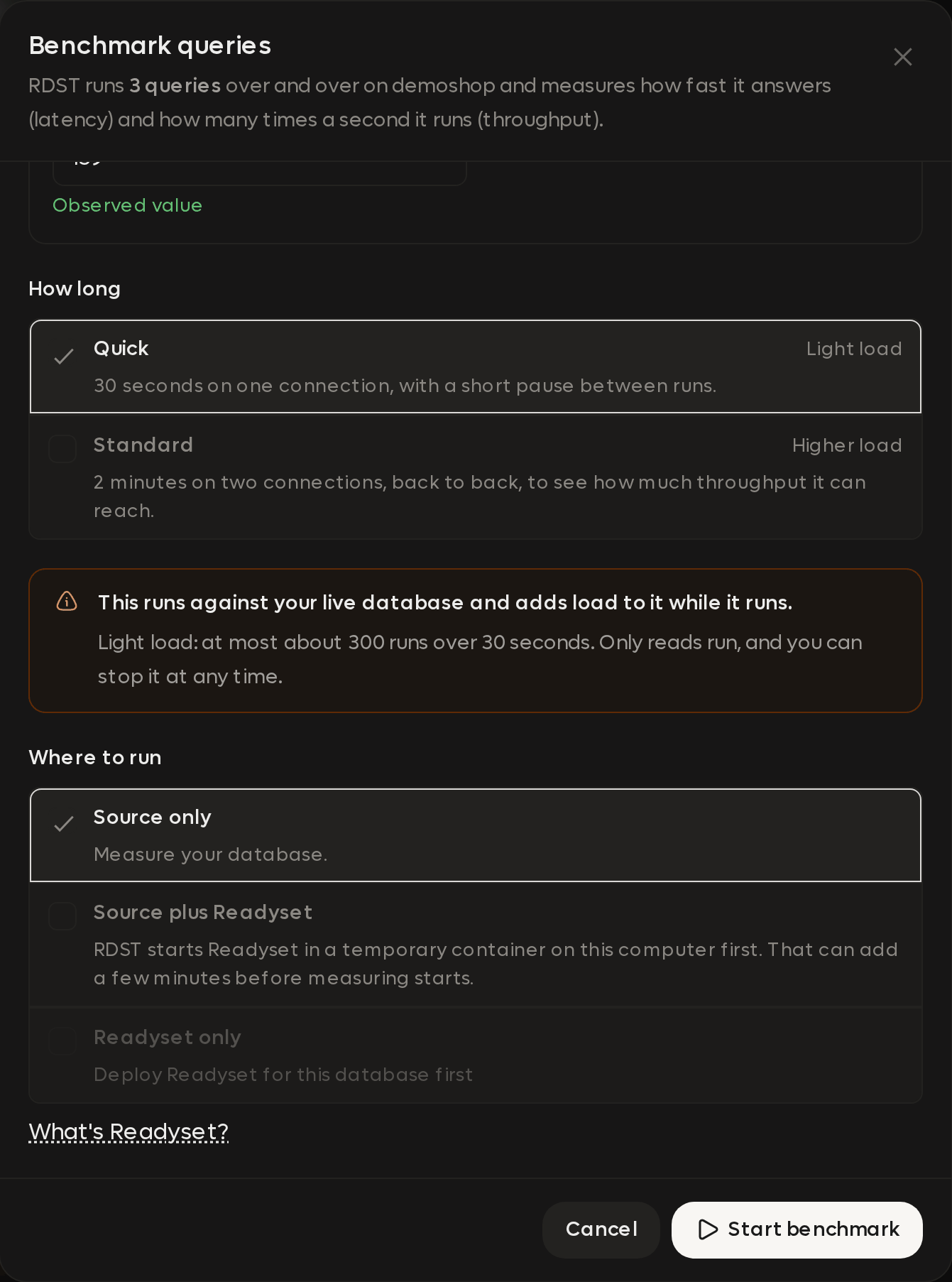
A benchmark runs against your live database and adds load to it while it runs. Only reads run, and you can stop it at any time.
With Readyset in the run, RDST creates and warms a temporary cache for each query, checks that the results match, and measures both sides. It drops the temporary caches when the run finishes. The container can stay up for the next run.
Use parameter values and a load that represent your application. Compare mean and tail latency for each side. The result describes those queries, their parameters, and the test workload.
The temporary Readyset uses pull-based caching (shallow). It doesn't configure replication or put Readyset in front of your application. See Readyset Cache for a production deployment, or use rdst query cache-compare from the CLI.
Actions
The short list of changes worth making on each monitored database, ranked by how much database time they'd save, with the SQL to run and a check that the fix worked.
Deep analysis
How many queries RDST deeply analyzes each day, which ones it picks, and where to follow the work in the Analyses list.