Settings and monitoring limits
Change each database's monitoring settings, turn monitoring off and on, and check how many databases your account can monitor with AI.
The monitoring menu
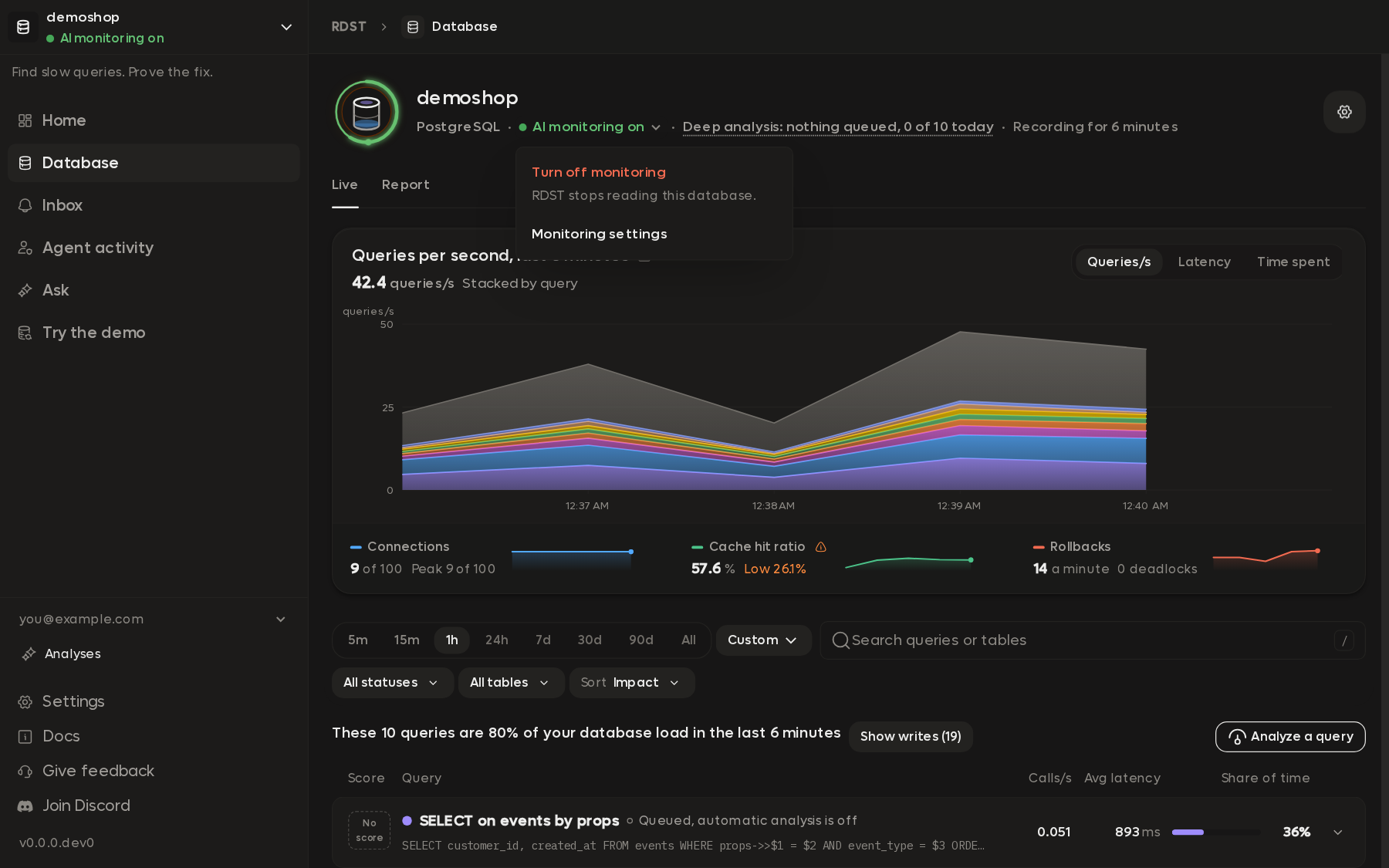
On the Database page, the monitoring state under the database's name (for example AI monitoring on) opens a menu:
| Item | What it does |
|---|---|
| Turn off monitoring | Stops reading this database, after you confirm |
| Turn on monitoring | Shown while monitoring is off. Opens the turn-on dialog |
| Monitoring settings | Opens the settings below |
Monitoring settings
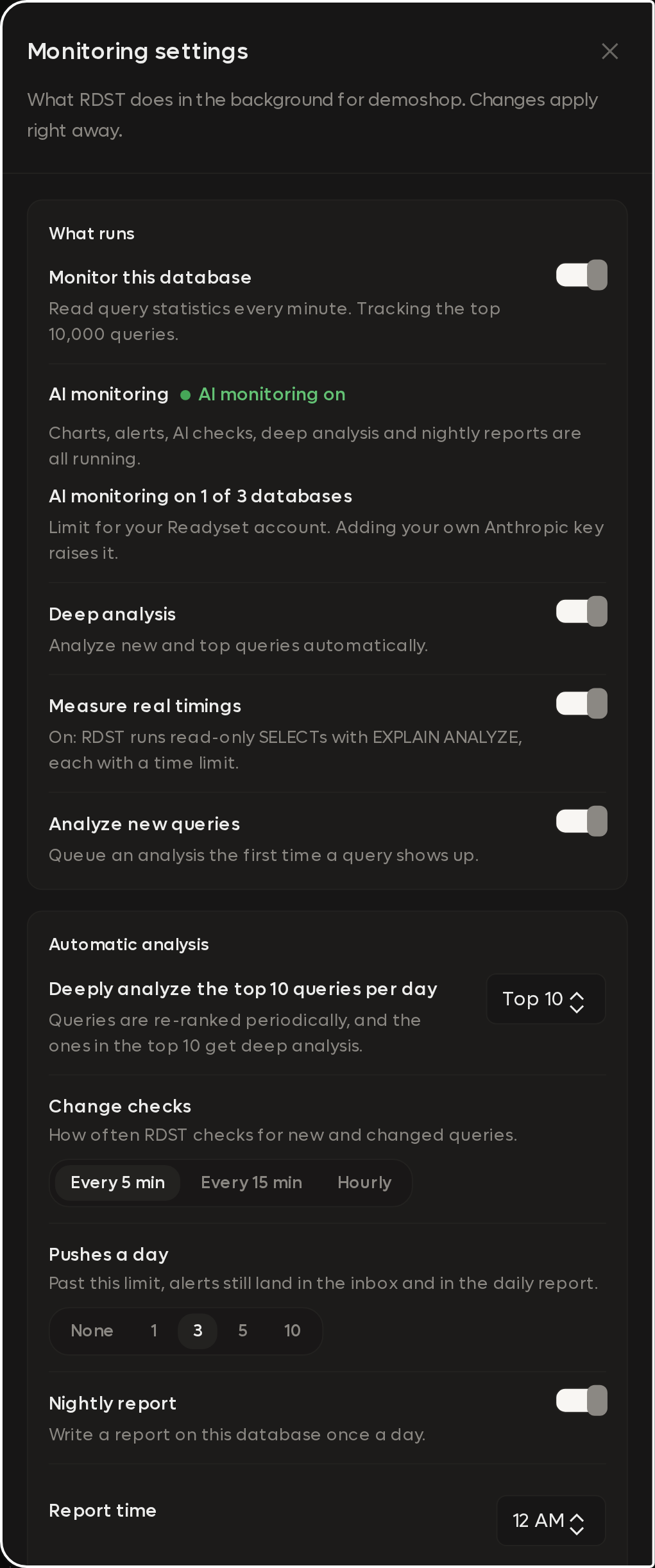
Each database has its own settings. Open them from the monitoring menu, or with the gear button at the top right of the Database page. Changes apply right away.
What runs
| Setting | Default | What it does |
|---|---|---|
| Monitor this database | Off until you turn it on | Reads the database's query statistics every minute, tracking the top 10,000 queries. Switching it off asks you to confirm, like Turn off monitoring |
| AI monitoring | Shows whether AI monitoring is on for this database and how many of your account's AI monitoring slots are used. See the database limit | |
| Deep analysis | On | Analyzes new and top queries automatically. Off, only the analyses you start run |
| Measure real timings | On | On, RDST runs read-only SELECTs with EXPLAIN ANALYZE, each with a time limit, and records real timings. Off, it reads plans with EXPLAIN and your queries never run. The turn-on dialog sets this first |
| Analyze new top queries | On | Analyzes a query automatically the first time it enters the top N |
Automatic analysis
| Setting | Default | What it does |
|---|---|---|
| Deeply analyze the top N queries per day | Top 10 | When monitoring turns on, all of the top N get their first deep analysis right away. They're re-analyzed as the ranking changes. Choose 5, 10, 25, 50, 100, 200 or 500. See how many run each day |
| Analyze up to M new top queries per day | 25 | Analyzes queries entering the top N for the first time. Beyond this daily ceiling, a query isn't queued; RDST picks it up the next day if it's still in the top N. This setting applies while Analyze new top queries is on |
| Change checks | Every 5 min | How often AI monitoring checks for new and changed queries: every 5 minutes, every 15 minutes, or hourly. Checking less often uses less AI, and changes take longer to reach the Inbox |
| Pushes a day | 3 | How many system notifications this database can send a day: none, 1, 3, 5 or 10. Past the limit, alerts still land in the Inbox and the nightly report. A lost connection doesn't count toward it |
| Nightly report | On | Writes a report on this database once a day |
| Report time | 12 AM | The hour the nightly report is written, on your computer's clock |
You can deep analyze any query yourself, as many times as you like, from its row or detail. Manual analysis always runs and never counts toward either automatic daily ceiling.
Deep analysis and Usage
The Deep analysis group shows the queued and running work for this database. It's the same list as Analyses in the sidebar.
Usage shows AI calls over the last 7 days and how much storage this database's history uses. When your account's AI usage runs out, the app says You've run out of AI usage for now. Local monitoring keeps running, and AI resumes once your usage is raised. Use Contact us to ask for more.
Control monitoring from the tray
Right-click the RDST icon in the system tray (click it in the macOS menu bar).
Open Monitoring and pick Turn monitoring off for or Turn monitoring on for the database. Turn all monitoring off and Turn all monitoring on apply to every database.
Monitoring is either on or off for each database. When it's off, RDST stops collecting readings. The history it already recorded stays, and the chart shows the gap. The tray icon shows when monitoring is off for every database.
Turn it off and on again
Pick Turn off monitoring in the monitoring menu, or switch off Monitor this database, and confirm.
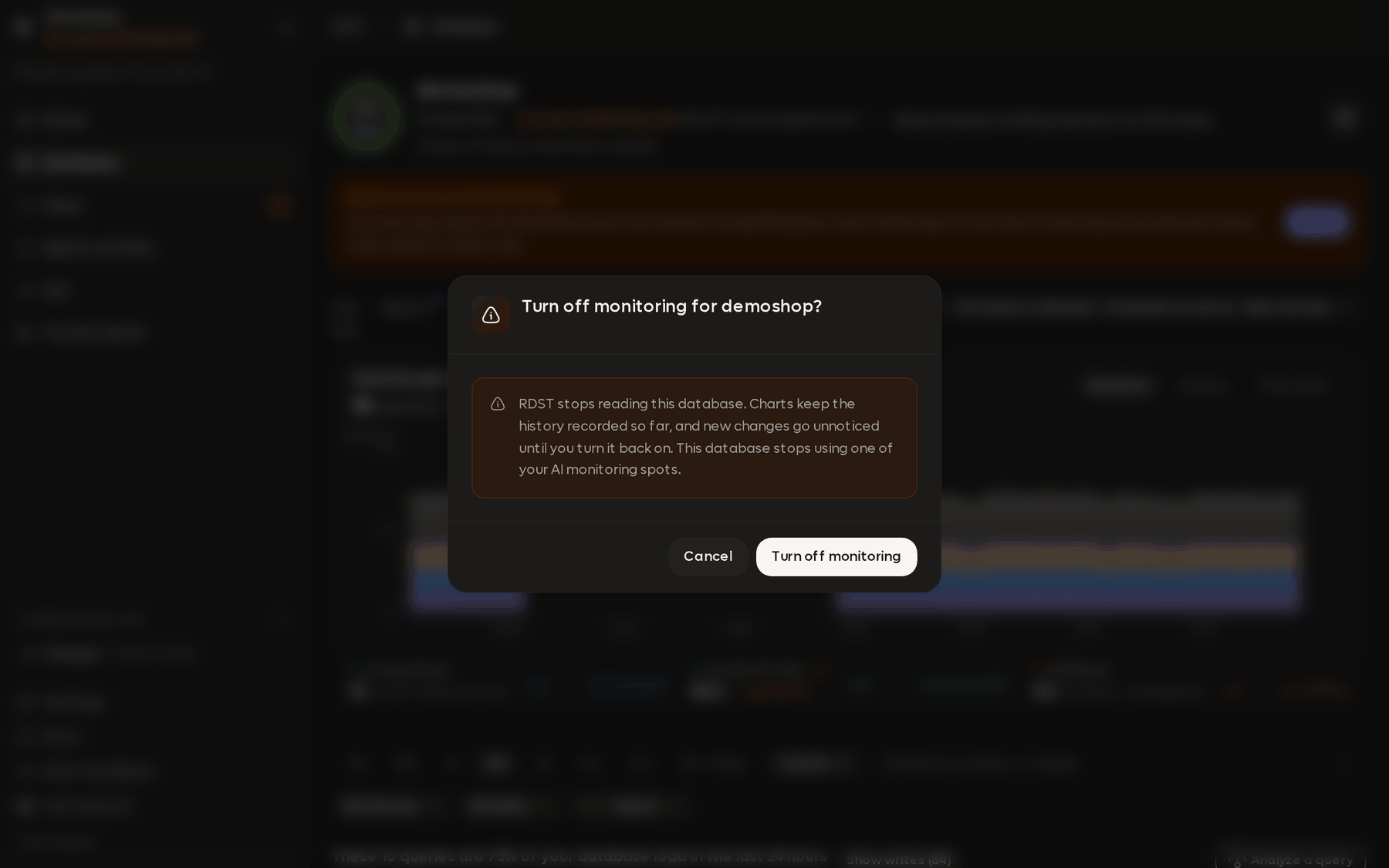
RDST stops reading the database. The charts keep the history recorded so far, new changes go unnoticed until you turn it back on, and its AI monitoring slot opens up for another database. Settings, then Targets, has the same switch for every database.
To turn it back on, pick Turn on monitoring in the same menu. The turn-on dialog runs its checks again. A database with history picks up where it left off, and deep analysis follows its automatic settings.
To stop RDST completely, pick Quit RDST from the tray menu.
The database limit
RDST currently allows AI monitoring on up to 3 databases per account. Contact us for more. Monitoring beyond that runs locally without AI.
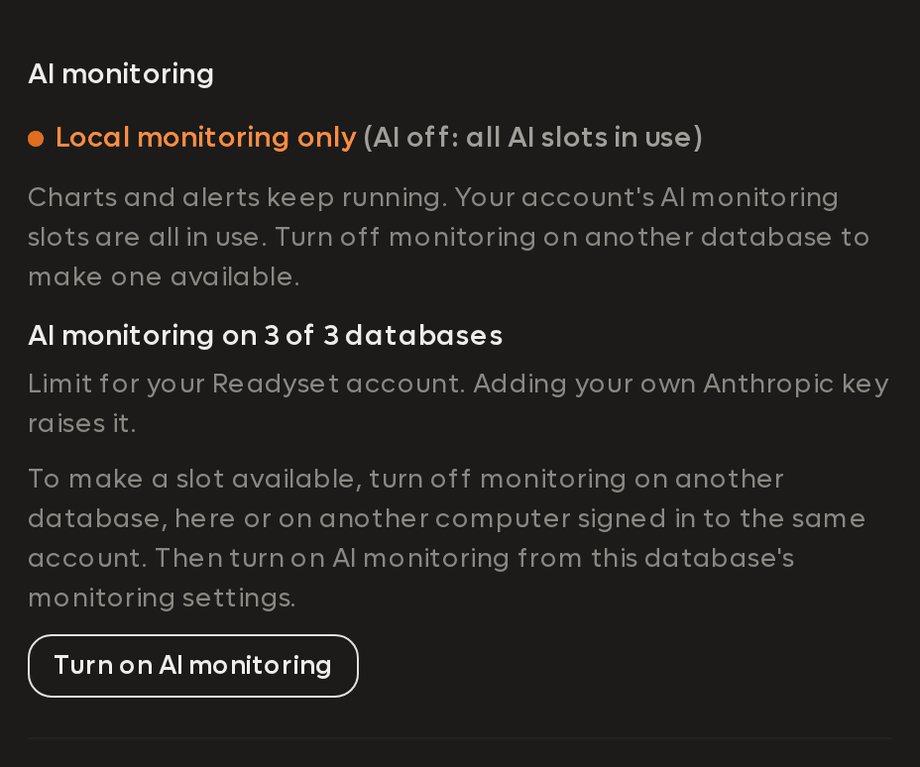
The app shows how many AI monitoring slots your account is using. The count includes enabled databases even when they're unreachable, and it applies across computers.
A database without an AI slot can use Turn on local monitoring. RDST records it, draws its chart, lists its queries, and raises locally measured alerts. Its AI change checks, automatic analyses, and written report summary are off. The Database page labels this state as local monitoring.
To open up an AI slot, turn monitoring off for a database or remove its target. Then select Turn on AI monitoring in the settings for the database you want to use. If the app can't reach Readyset when you release a slot, the account count can take a while to update.
Adding your own Anthropic key raises the limit to 10 databases. You still need to be signed in for AI monitoring. Contact us for more.
Ask and individual Analyze calls don't claim an AI monitoring slot.