Deep analysis
How many queries RDST deeply analyzes each day, which ones it picks, and where to follow the work in the Analyses list.
A deep analysis reads a query's execution plan and works out where its time goes. When a change would help, it may suggest adding an index, rewriting the query, or changing a database setting. It gives the query a score out of 100 and shows up in the query's Deep analysis section on the Database page.
Background analysis runs up to 3 queries at a time per database, and up to 6 across all your databases. It saves the full analysis record, including plans, findings, and suggested changes, and tests the rewrites it suggests. Tested indexes and rewrites feed Actions.
How many run each day
Each database has two settings in the monitoring settings:
- Deeply analyze the top N queries per day defaults to 10. When monitoring turns on, all of the top N get their first deep analysis right away. You can pick 5, 10, 25, 50, 100, 200 or 500.
- Analyze up to M new top queries per day defaults to 25. With Analyze new top queries on, queries entering the top N for the first time get analyzed automatically, up to this separate daily ceiling.
RDST re-ranks queries by their current load every few minutes. A query that falls out of the top before its turn can give its place to a busier one. When the day's ceiling is reached, the query isn't queued. RDST picks it up on the next day if it's still in the top N. Daily ceilings reset at midnight on your computer's clock. The Analyses list only contains work queued to run now.
What gets analyzed
With Deep analysis on, RDST picks queries in this order:
- Initial top queries get analyzed right away. All of the top N are eligible as soon as readings arrive. RDST aims to score the first page within about 10 minutes, with only a few analyses running at once to limit database load.
- New top queries get analyzed automatically. A query entering the top N for the first time uses the newcomer setting while Analyze new top queries is on.
- Top queries get analyzed again. Each of the 15 busiest queries is eligible for re-analysis once its last analysis is more than a day old. These runs follow the daily ceiling, so scores keep up with your data and load.
RDST only analyzes reads. Writes, schema changes and session commands show Not analyzed, with the reason on hover.
If a deep analysis gets an unusable answer from the AI, RDST retries once right away and shows Retrying. Classifications get the same immediate retry.
If the AI service still doesn't answer, RDST tries again after 1, 5 and 30 minutes. The row shows Will retry at with a time, then Retrying when the retry is near. After that, the query waits for its normal turn.
Analyze a query yourself
A query you pick always gets its turn first:
- Analyze now on a query row puts it at the front of the line, ahead of every automatic analysis. It works with Deep analysis switched off and after the day's automatic analyses are used. If the query's already waiting, the row shows its place, like Queued, 2nd.
- Analyze a query above the list takes SQL you paste and analyzes it right away.
You can deep analyze any query yourself, as many times as you like, from its row or detail. Manual analysis always runs and never counts toward either automatic daily ceiling. Raise the settings to have more queries analyzed automatically.
The values it uses
A query with parameters needs real values to run. RDST picks them in this order and says which it used on the analysis:
| Analysis says | Where the values came from |
|---|---|
| Measured with values from live traffic | Values sampled from your app's own running queries |
| Measured with values taken from the table's own data | Real values read from the table, when none were sampled |
| Plan only | No real values were available, so RDST read the plan without running the query |
RDST never makes values up. With EXPLAIN only chosen, every analysis is plan only. See EXPLAIN ANALYZE or EXPLAIN only.
The Analyses list
Analyses at the bottom of the sidebar lists the work that's queued or running on every database:
- Deep analyses appear in one group per database that expands to each query. They show Analyzing now, Queued, 2nd and so on, or Retrying.
- Reports appear while they're being written.
- Analyses you started appear while they're queued or running.
Done today stays collapsed at the bottom. Work that isn't queued isn't listed. The score column on the Database page shows Queued with its place, Analyzing with the current step, or Retrying.
Click a queued or analyzing item to open that query in the main list, on its page, scrolled into view and highlighted. Your filters and sort stay as they are. If a filter hides it, RDST offers Show it, which clears only the filters needed to reveal it.
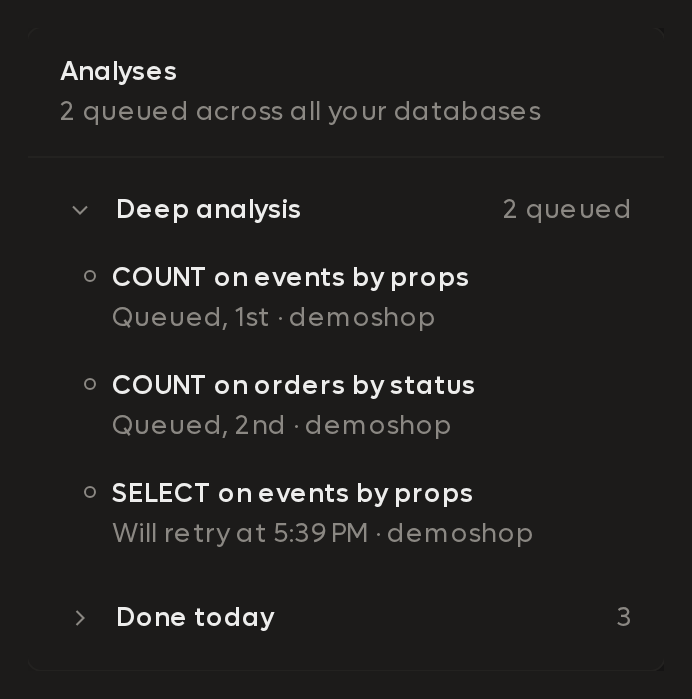
The Deep analysis group in a database's monitoring settings shows the same list for that database.
Read an analysis
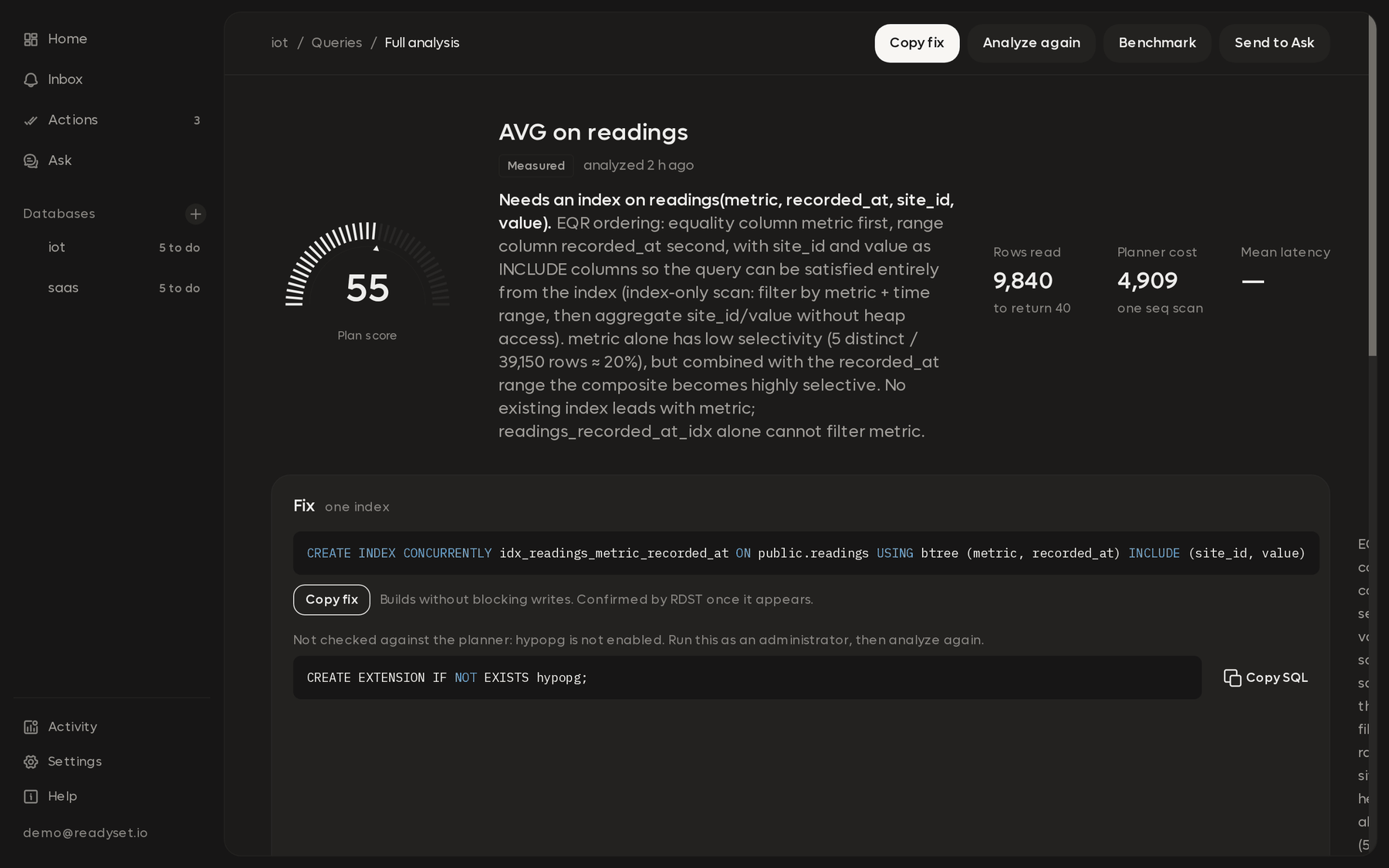
Expand a query on the Database page and find Deep analysis. Start with its findings and score, then inspect the plan and supporting measurements.
| Section | What to check |
|---|---|
| Execution plan | Operators that consume the most work |
| Estimates and actual rows | Differences that may point to stale statistics or a poor plan |
| Indexes | Suggested definitions and why they may help |
| Rewrites | Candidate SQL to review and test |
| Readyset assessment | Whether the query is supported for caching |
Measured timings appear only when RDST ran the query. Plan-only analysis uses planner estimates. For parameterized SQL, the analysis labels where its values came from.
Suggested changes need review and testing. RDST never applies them; the ones worth making show up in Actions. Use a benchmark to measure a caching candidate, or rdst analyze for CLI analysis and follow-up questions.
Query execution has a timeout. Check the limit used by a run in Agent activity.
The Database page
See how busy your database is right now and which queries take up most of its time. Each query shows whether it's healthy and the score from its last deep analysis.
The Inbox
See what changed on your databases, with the most urgent items first. Each item explains what happened and where to look next.