Import from AWS
Sign in to AWS, pick the regions you care about, and add the RDS and Aurora instances RDST finds without typing a single hostname.
If your databases run on RDS or Aurora, you do not need to type their connection details. RDST can read them from the AWS API.
Open Settings and click Discover & import.
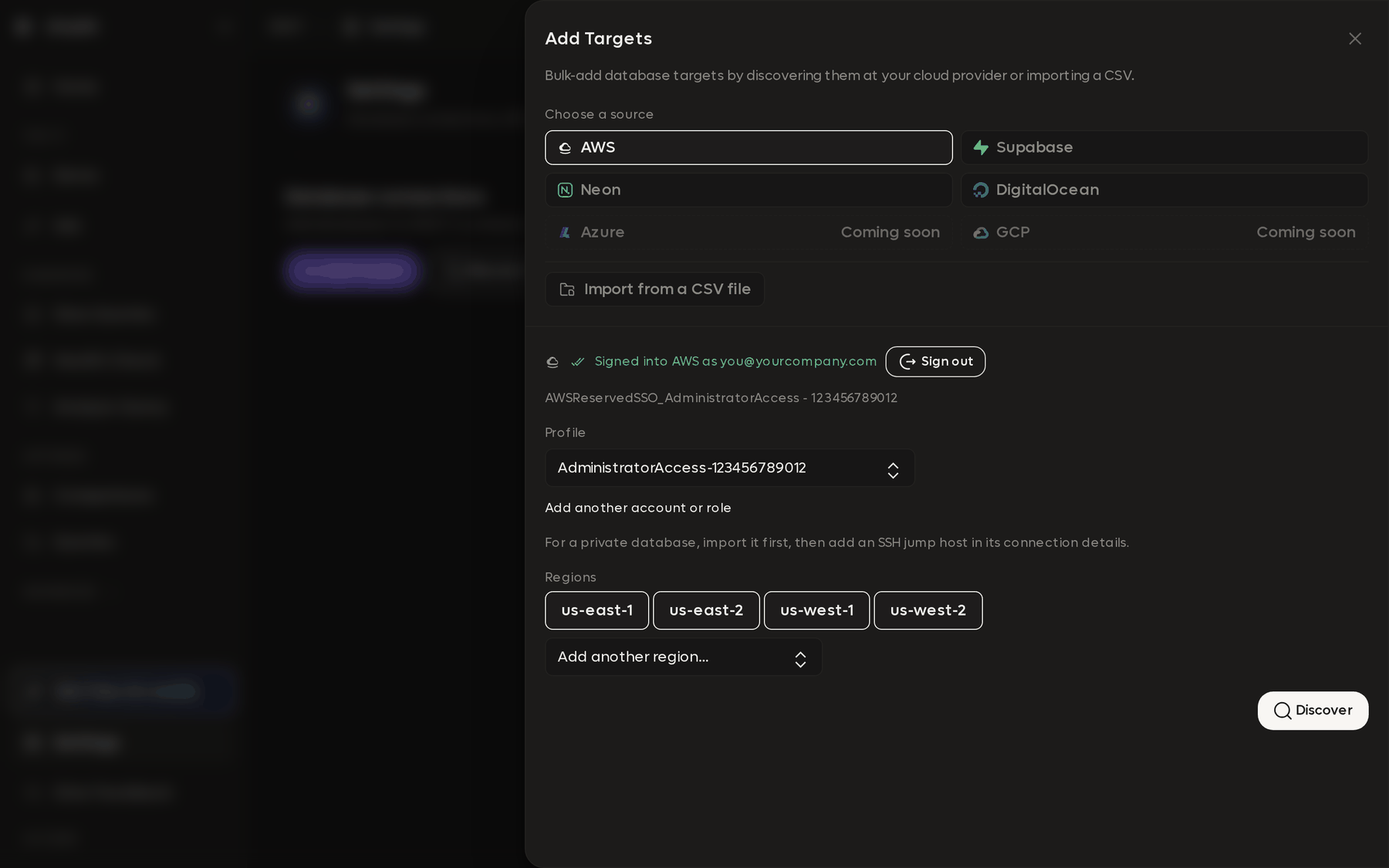
Importing from AWS
Choose a source. AWS, Supabase, Neon, and DigitalOcean each read your account and list what they find. You can also import a CSV. Azure and GCP are listed as coming soon.
Sign in. RDST uses AWS IAM Identity Center, so the browser handles the login and RDST never sees a long-lived key. If you already have working AWS CLI profiles, RDST picks them up and shows you as signed in immediately.
Pick the account. The Profile dropdown lists every profile RDST can see. Add another account or role signs you into one you have not used yet.
Databases only appear if the selected profile can see them. If discovery comes back empty, this is almost always why: the instance lives in a different account than the profile you have selected.
Pick the regions. RDST offers the common ones as chips and Add another region... covers the rest. Each selected region is a separate API call, so choosing only what you need keeps discovery fast.
Discover. RDST lists every RDS and Aurora instance it found, with engine, endpoint, and port.
Select and import. Tick the ones you want and click Add N selected. They appear in the target list and are usable everywhere in the app.
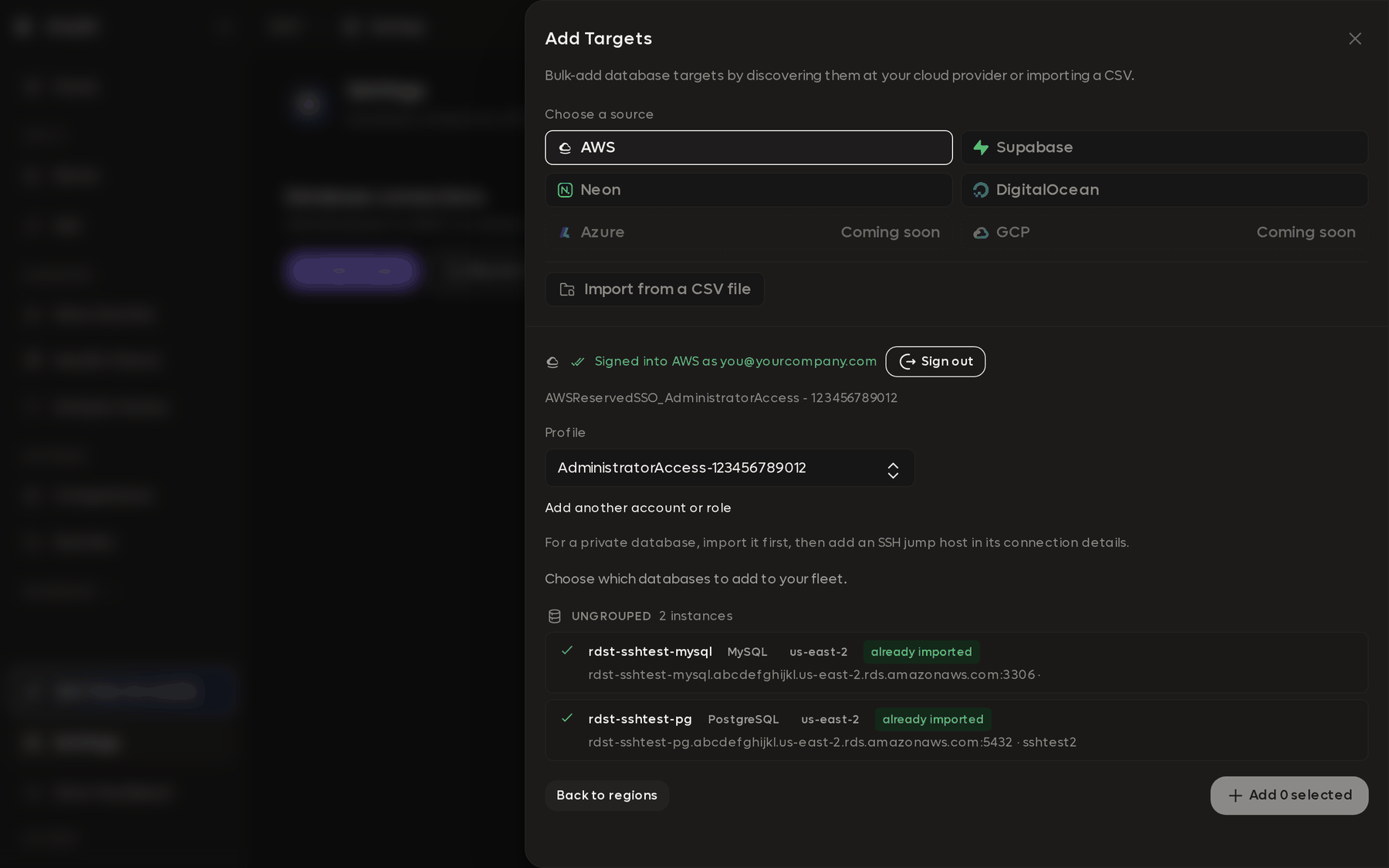
What discovery can and cannot fill in
Discovery reads what the RDS API knows: identifier, engine, endpoint, port, instance class, region, VPC, and whether the instance is publicly accessible. It uses the instance identifier as the target name.
Two things it cannot know:
The password. AWS does not expose it. RDST prompts for the credential the first time you use the target, and stores it in your operating system keychain.
The database name, sometimes. RDS only reports a DBName when the database
was created as part of provisioning the instance. If someone created it by hand
afterwards, the field comes back empty and RDST leaves it blank for you to fill
in. This is common, and the target will not connect until you do.
Discovering a private instance imports it, but does not make it reachable. An instance with Publicly accessible: No needs a route into its VPC. Import it first, then add an SSH jump host in its connection details. See Private databases.
Large fleets
The app is built for picking instances off a list. If you are importing hundreds
of databases, or want discovery to run on a schedule, the CLI covers that same
ground non-interactively with
rdst fleet discover,
and both write to the same configuration.
Connect a database
Add a database to RDST by hand, import your whole fleet from AWS or a managed provider, or reach a private database through an SSH jump host.
Supabase, Neon, and DigitalOcean
Connect a managed Postgres or MySQL provider, find your projects, and pick the databases you want instead of copying connection strings by hand.